Account import
What “account import” actually does
RSL Tool needs to know what champions, artifacts, and masteries you own to give meaningful advice. There are two import paths:
- Plarium Play attach (recommended) — the app reads the Raid process’ in-memory state and stays in sync with anything you change in-game.
- Static JSON dump — for cases where the app can’t attach (Plarium Play closed, hardened runtime, sandboxed environment).
Path A — Live attach to Plarium Play
This is the recommended path. RSL Tool reads game state directly from the running Plarium Play process and stays in sync with anything you change in-game.
Step-by-step
- Launch Plarium Play, log in, start Raid: Shadow Legends, and wait for the main screen to finish loading.
- Open RSL Tool. The top-right of the window shows the detected game version and a Connect button. Click it.
- On the very first attach macOS shows a Developer Tools Access dialog — authorise with Touch ID or your password (covered in the install guide, step 4).
- After 5–15 seconds the top-right indicator turns green and reads Connected:

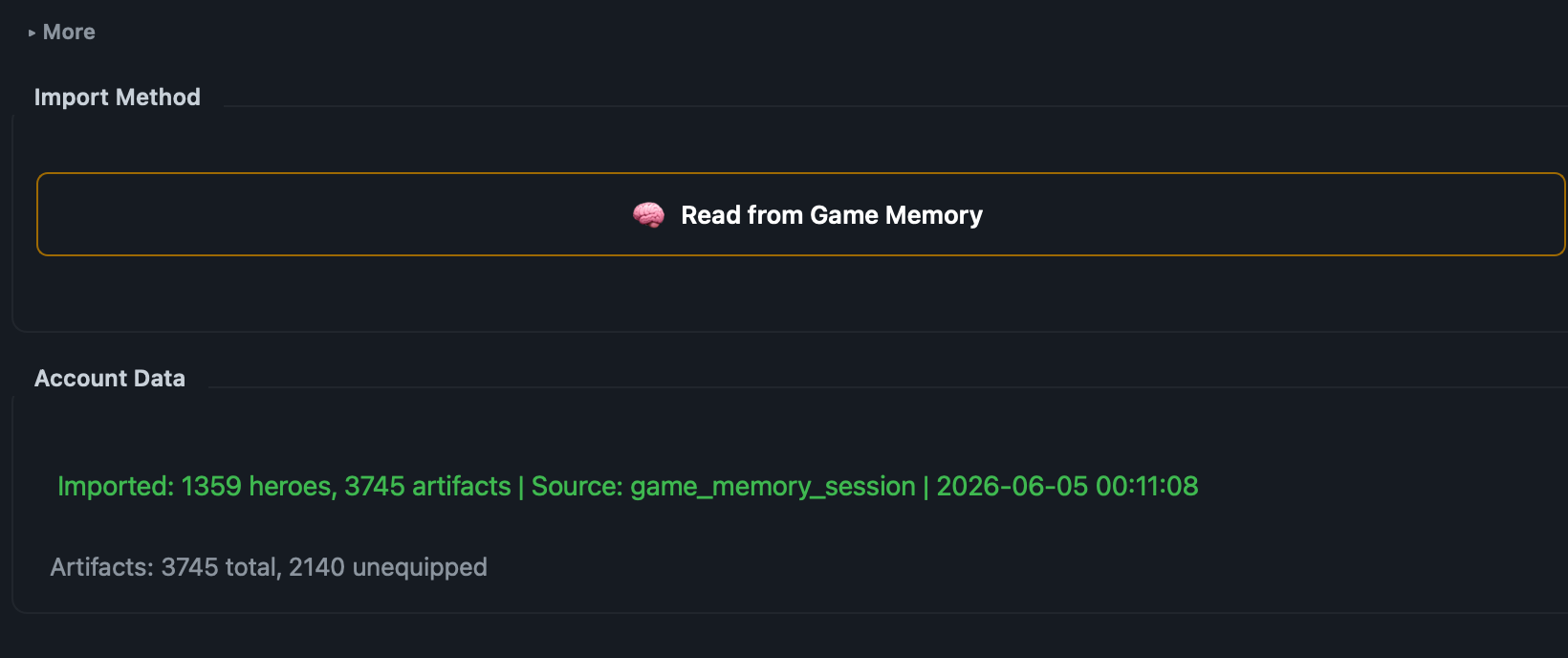
The top-right of the window after a successful attach — game version detected on the left, Connected badge active in the middle. - With Auto-import account after connecting on (default), the roster import fires automatically. Otherwise switch to the Import tab and click Read from Game Memory.
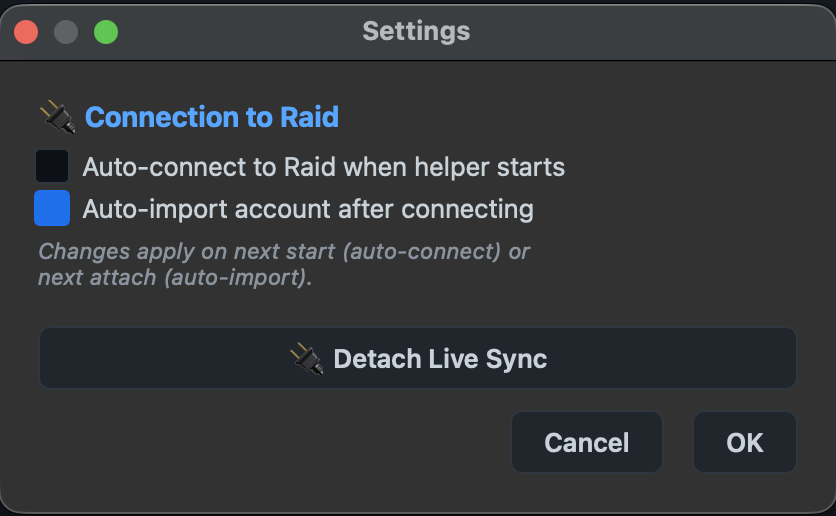
Auto-connect and auto-import settings
Open the gear icon in the top-right and look at the Connection to Raid section:
What gets read
- Owned champions, their levels, stars, masteries, and equipped gear
- Artifact inventory (every roll on every piece)
- Hero-page final stats (post-set bonuses, post-mastery, post-aura)
- Saved in-game presets (read-only — Premium can write back, see Live-Sync Presets)
Re-importing
Changes you make in-game propagate automatically when Live-Sync is on. Without Live-Sync, click Read from Game Memory on the Import tab again to refresh.
Path B — Static JSON dump (fallback)
When you can't attach to a running Plarium Play (game closed, sandboxed environment, analysing someone else's roster), import from a saved JSON dump. The fallback lives behind the ▸ More expand at the top of the Import tab.
Where to get a JSON dump
RSL Tool writes one on every successful read: ~/Library/Application Support/RSL Tool/account-dumps/YYYY-MM-DD-HHMMSS.json. Old dumps are auto-pruned after 30 days. You can also share a dump with another RSL Tool user — they import it the same way.
Common questions
Status bar stays on “Disconnected” after I click Connect
- Confirm Plarium Play is actually running and Raid is past the login screen on the main menu — attach only succeeds against an in-menu game state, not loading transitions.
- If you clicked Cancel on the Developer Tools Access prompt, click Connect again to re-trigger it.
- If it still hangs, ping [email protected] with your macOS version and Plarium Play version — we'll triage.
Attach takes minutes / hangs
Re-launch RSL Tool with Plarium Play already on the main screen. The first attach after a long idle can hit a slow code path; subsequent attaches are fast.